

Tips and Trends
Add Impact to Your Videos with High-Quality Sound Effects
Read More
/28 Jul 2025


Have you ever seen a picture get blurry when you make it bigger? This happens with regular photos. They are made of tiny squares of color called pixels. When you stretch the picture, the squares get bigger. This makes the image look pixelated and unclear.
Vectorizing is the process of changing a picture from pixels to lines and shapes. These lines and shapes are based on math formulas. Instead of a grid of tiny squares, a vector image is a series of points, lines, and curves. Because it uses math, you can make the picture any size you want It will never get blurry or lose quality
This is a Raster Images:very important skill for making logos, icons, and designs that need to be used in many different ways.
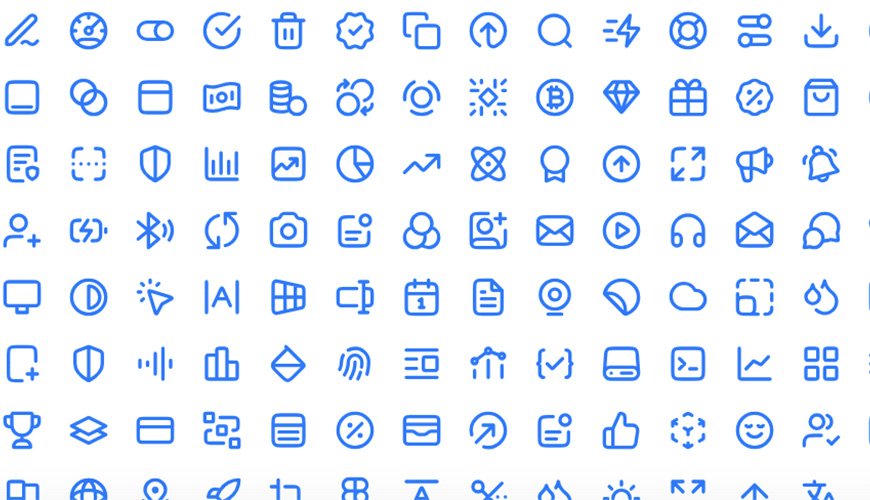
Icons need to be clear at different sizes. Think about an app icon. It must look good on a small phone screen. It also needs to look good when it's much bigger, like on a website or a large display.
Here are the main reasons to use a vector image for an icon:
It can be any size: You can shrink a vector icon to a tiny size or blow it up to a huge size for a billboard. It will always stay sharp.
Clear and clean lines: Vector images have smooth, crisp lines. This is perfect for simple icons and logos.
Easy to change colors: It is simple to change the colors of a vector image. You can change one part of the icon without messing up the rest. This helps you match your icon to a new project.
It helps to understand the two main types of images.
Made of pixels. They are best for photos and detailed pictures. Examples include JPG, PNG, and GIF. When you zoom in, you see the pixels.
Vector Images:
Made of lines and shapes. They are best for logos, icons, and illustrations. Examples include SVG, EPS, and AI. When you zoom in, the lines stay smooth.
You can turn a pixel-based image into a vector image. This is often called "tracing." You can do it by hand or use an online tool to help.
Many design programs have tools for vectorizing.
Open your image: Put your pixel-based image (like a JPG) into the program.
Use the "trace" tool: Most programs have a tool that will trace the edges of your image. This tool finds where the colors change and turns those areas into lines and shapes.
Adjust the settings: You can change how the tool works. For example, you can tell it to use fewer colors or create smoother lines.
Clean it up: The tool might not make a perfect design. You can go in and change the lines and shapes by hand.
Save as a vector file: Save your new file as an SVG, EPS, or other vector file type.
There are many free and paid tools online that do this for you.
Go to the website: Find a website that offers image vectorizing.
Upload your image: Put your picture on the website.
Let the tool work: The website will use a program to trace the image for you.
Download the result: The site will give you a new, vectorized version of your picture.
Not all images are good for vectorizing. The best images to use are:
Simple logos
Line art or sketches
Drawings with solid colors
Complex images like photos do not work well. They have too many colors and details. Vectorizing a photo will make it look like a cartoon or a painting.
Once you have a vector image, you can use it to create an icon. You might want to make it smaller. You might also want to change its colors to fit a certain design.
Since the file is a vector, you can change it as much as you want. The final icon will be crisp and clear at any size
Vectorizing an image is a powerful skill. It allows you to take a simple design and turn it into a high-quality icon. It is the best way to make sure your logos and icons always look sharp.