




AI Learnings
The Synergy of AI Audio and Visuals in Modern Web Design
Read More
/18 Aug 2025


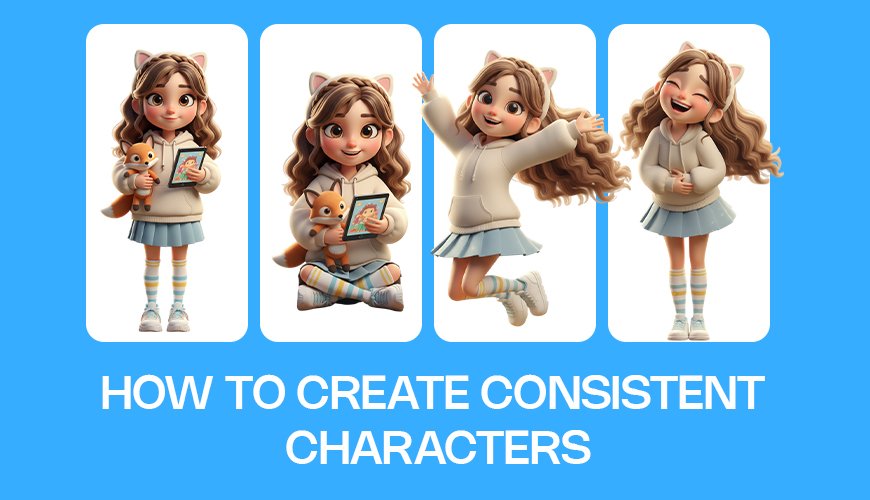
Imagine creating an amazing character for your story, game, or brand. You design them perfectly – their face, their style, their unique charm. But then, as you try to place them in different scenes, poses, or outfits, they subtly change. Their nose is a little different, their eyes aren't quite the same, or their hair has a mind of its own. Frustrating, right?
This is a common headache in the world of AI image generation. While AI can conjure up breathtaking visuals, maintaining a consistent character across multiple images has been a significant challenge. It's like trying to get an artist to draw the exact same person from memory, over and over, with slight variations each time. For anyone serious about visual storytelling, branding, or creating cohesive digital content, character consistency isn't just a nice-to-have; it's an absolute necessity.
Whether you're crafting a comic book, developing marketing materials, or just having fun with creative projects, ensuring your main character looks the same – whether they're battling dragons, sipping coffee, or exploring a futuristic city – is key to immersion and brand recognition. Without it, your audience might get confused, and your carefully constructed visual narrative can fall apart.
But what if there was a way to keep your character consistent across any pose, style, or scene with just one simple reference image? What if you could tell an AI, "This is my character; now show them doing this, then that, and make sure it's always them"?
Good news! The future of consistent AI character creation is here, and it's more accessible than ever. Thanks to advanced AI tools like the Freepick AI suite, this once-daunting task has become incredibly straightforward. In this comprehensive guide, we're going to dive deep into how you can use Freepick AI to achieve flawless character consistency, transforming your creative workflow and ensuring your characters always remain true to themselves, no matter the adventure.
Get ready to unlock two powerful, yet surprisingly simple, methods within Freepick AI that will change the way you think about character generation and editing forever. Let's get started!
Before we jump into the "how," let's quickly underscore the "why." Why is character consistency such a big deal in AI-generated imagery?
Brand Identity: For businesses and marketers, a consistent character in advertisements or mascots builds strong brand recognition. Think about famous cartoon characters or brand icons – their consistent appearance is crucial to their identity.
Storytelling and Narrative Flow: In comics, animations, or any visual story, characters need to look the same from one panel or scene to the next. Inconsistencies can break the reader's immersion and make your narrative less believable.
Efficiency in Production: If you can generate a character consistently, you save immense amounts of time that would otherwise be spent manually editing or correcting discrepancies.
Professionalism: Consistent visuals convey a high level of polish and professionalism, whether you're a hobbyist or a professional designer.
User Experience: For game developers or app designers, a consistent avatar or guide character ensures a seamless and intuitive user experience.
Now that we understand the importance, let's explore how Freepick AI makes this a reality.
The first incredibly powerful method for maintaining character consistency lies within Freepick AI's Image Generator, specifically utilizing the advanced Idogram model. This model is engineered with a special focus on creating lifelike characters and, crucially, excels at keeping your reference character consistent across a multitude of new images.
Think of the Idogram model as a brilliant artist who has memorized your character's exact features and can then draw them in countless new scenarios without ever deviating from their core look.
Here’s a step-by-step guide to mastering this feature:
First things first, navigate to the Image Generator section within the Freepick AI suite. Once there, you'll need to select the Idogram model. It's usually prominently displayed as a choice among various AI models. Choosing Idogram is the foundational step because it's specifically designed for the task of character consistency.
With the Idogram model selected, your next action is to click "New Character." This is where you begin to define and upload your unique character.
Give Your Character a Name: This seems simple, but it's important for organization. A clear name helps you identify your character later, especially if you plan to create multiple consistent characters. "Adventurous Annie," "Tech Wizard Tim," or "Mysterious Maya" are good examples.
Choose a Gender: This helps the AI further refine its understanding of your character's baseline appearance.
Upload Your Reference Image: This is arguably the most critical step. You need to upload your reference image – a high-quality image of the character you want to keep consistent. This image acts as the AI's blueprint. The clearer and more representative this image is, the better the AI will be at recreating your character accurately in new generations. Ensure the reference image clearly shows the character's face and distinctive features.
Once these details are set, Freepick AI has 'learned' your character. It has registered their unique facial structure, hair color, eye shape, and other defining traits.
Now for the truly creative part: telling the AI what new scene or pose you want your character to be in. This is where your prompt writing skills come into play.
Describe the New Scene or Pose: Be as descriptive as possible. Don't just say "running." Instead, think about:
The Action: "running through a bustling city street," "meditating on a mountaintop," "typing furiously at a futuristic computer," "sipping tea in a cozy cafe."
The Mood: "determined and focused," "peaceful and serene," "stressed and frantic," "playful and mischievous."
The Outfit: "wearing a sleek black leather jacket," "dressed in ancient warrior armor," "donning a futuristic silver jumpsuit," "in a casual t-shirt and jeans."
The Environment: "under a starry night sky," "in a sunlit meadow," "inside a neon-lit cyberpunk alley," "a cozy library with bookshelves in the background."
Lighting and Style: "dramatic cinematic lighting," "soft, natural daylight," "vibrant, comic book art style," "realistic photography."
Examples of Effective Prompts:
"Adventurous Annie, determined and focused, running through a bustling city street at sunset, wearing a sleek black leather jacket, cinematic lighting."
"Tech Wizard Tim, peaceful and serene, meditating on a mountaintop at dawn, wearing simple robes, soft, natural daylight, watercolor style."
"Mysterious Maya, playful and mischievous, sipping tea in a cozy cafe with bookshelves in the background, wearing a vintage dress, warm indoor lighting."
The more detail you provide in your prompt, the better the AI can contextualize your consistent character within the new environment.
When your prompt is ready, click "Generate" to create your image. The magic happens now: the Idogram model takes your character's blueprint and renders them into the scene you described, ensuring their core identity remains intact.
Explore Different Versions: Don't stop at the first image! AI generators often provide multiple variations. Experiment with slight changes in your prompt or explore the different outputs the AI provides. You can generate everything from your character "still and quiet, deep in thought" to "bold and moving through the city, wind in their hair."
Observe the Consistency: The remarkable thing you'll notice is that no matter the angle, the pose, the lighting, or the new environment, it's always the same character. Their facial features, their unique expressions (if subtly implied by the pose), and their overall appearance will remain consistent. This feature is a game-changer for anyone needing a unified visual narrative.
Marketing Campaigns: Create a consistent brand mascot in various ad scenarios.
Children's Books/Comics: Generate your main character in countless scenes and poses without manual redrawing.
Game Development: Visualize character models in different environments or with different emotio
Personalized Content: Develop a consistent avatar for profiles or personalized messages.
Sometimes, you already have an image or a collection of images, and you simply want to insert your consistent character's face into them, perhaps to change a background, an outfit, or a hairstyle, without altering the character's identity. This is where Freepick AI's Image Editor shines, particularly its "Retouch" and "Use Character" functions. This method is incredibly powerful for post-production or adapting existing visuals.
Imagine you have a fantastic background scene, but the person in it isn't your character. Or maybe your character is in a great pose, but the background is wrong. This tool lets you fix that in moments.
Here’s how to seamlessly swap faces and maintain consistency:
Start by opening the image you want to modify within the Freepick AI Image Editor. Once your image is loaded, navigate to the "Retouch" feature. This is where you'll begin the precise adjustments.
With the retouch tool active, you'll need to brush over the specific area you want to change. In this case, you'll carefully brush over the face of the character (or the area where a face would be) in your existing image. The AI needs to understand precisely where to apply the character consistency magic. Be as accurate as possible to ensure a clean swap.
After you've highlighted the target area, click "Use Character." This command tells the AI that you're not just doing a generic retouch; you're invoking your pre-defined character.
Select Your Character Reference or Upload a New One: At this point, you'll be given the option to either select your character reference from a list of characters you've previously saved (like the one you created using the Idogram model) or upload a new one if this is a fresh character or you haven't saved them yet. Choosing a previously defined character is usually faster and ensures maximum consistency with other images you've generated using that same character profile.
Now comes the truly impressive part. With your reference character selected, the AI gets to work. It will intelligently swap the face in the brushed area with the face of your reference character. The incredible aspect here is that everything else stays the same. The original body pose, the outfit (unless you explicitly brushed over it too), the lighting, and the background – all remain untouched. Only the face is seamlessly replaced with your consistent character's face.
The power of this feature is best understood through experimentation:
Change the Background: Let's say you have an image of your character in a sunny field. You can use the retouch tool to select the background, then use a prompt (or another AI feature within Freepick) to try a new background. For example, a "night scene" might work great. Even with this dramatic change, your character will still look exactly like themselves, simply placed in a new environment. This allows for incredible flexibility without having to regenerate the entire image from scratch.
Modify Outfits or Accessories: Similarly, you can brush over an outfit and describe a new one. The AI, with your character's face locked in, will render a new outfit that fits the character's body and the new description, all while keeping their identity intact.
This method is incredibly efficient for adapting existing assets or quickly iterating on character presentations within different contexts.
Product Mock-ups: Quickly put your consistent model's face onto different clothing items.
Social Media Content: Adapt a single character for various themed posts (e.g., holiday backgrounds, seasonal outfits).
Concept Art Iteration: Test different looks or settings for a character without redesigning their core face.
Personalized Avatars: Place a consistent personal avatar into different digital scenes or profile pictures.
While Freepick AI's character consistency tools are phenomenal, you can take your images to the next level, especially for character portraits, by utilizing the upscaler. Sometimes, after generating or editing, you might notice that while the consistency is there, certain fine details could be sharper or more refined. This is where upscaling comes into play.
Upscaling is an AI process that intelligently increases the resolution of an image, adding detail and sharpness without simply blurring or pixelating the original. It "guesses" what details should be there based on its training, making the image look clearer and more professional.
For sharper results, particularly when focusing on your character's face or intricate details of their appearance, you should use the upscaler.
Portrait Setting: Freepick AI often offers specialized upscaling modes. Look for a "portrait setting" within the upscaler tool. This setting is specifically optimized to enhance facial features, skin textures, hair strands, and eye details, making your character's face incredibly lifelike and sharp.
Precision Mode: Alongside the portrait setting, activate "precision mode" if available. Precision mode ensures that the upscaling process is meticulous, adding portrait-level detail with accuracy, rather than general enhancements. It focuses on bringing out the subtle nuances that make a character feel truly alive.
By applying these upscaling techniques, you can ensure that your consistent character not only maintains their identity across images but also boasts impeccable, high-definition detail, ready for any professional application. It's the final polish that elevates a good image to a great one.
The capabilities offered by Freepick AI for character consistency are more than just neat tricks; they represent a significant leap forward in how we interact with and utilize AI in creative fields. The ability to lock in a character's identity and then generate them in endless scenarios or integrate them into existing images with ease has profound implications across various industries.
For graphic designers, illustrators, marketers, and content creators, these tools drastically reduce the time and effort required to produce consistent visual assets. No longer do artists have to meticulously redraw characters from different angles or manually adjust features to match a previous rendition. AI handles the heavy lifting, allowing creatives to focus on the overarching vision and narrative.
These tools also democratize content creation. Individuals without advanced artistic skills can now create professional-looking visuals with consistent characters for their blogs, social media, small businesses, or personal projects. This lowers the barrier to entry for high-quality visual content.
By removing the constraint of manual consistency, AI frees creators to explore more ambitious and complex visual narratives. They can experiment with a wider range of scenes, poses, and stylistic variations for their characters, knowing that the core identity will remain intact. This encourages greater innovation and broader artistic exploration.
Gaming: Rapidly prototype character concepts in diverse environments and lighting.
Animation: Generate key poses for characters, maintaining their model sheet consistency.
E-commerce: Display models consistently across different product lines or virtual try-ons.
Education: Create engaging, consistent characters for educational materials and simulations.
Personal Branding: Develop a unique, recognizable avatar for all digital platforms.
The era of inconsistent, fluctuating AI-generated characters is rapidly fading. With powerful tools like the Freepick AI suite, maintaining your character's identity across an entire portfolio of images has become not just possible, but incredibly simple. Whether you're leveraging the advanced Idogram model in the Image Generator to conjure your character into brand-new scenes, or using the Retouch feature in the Image Editor to seamlessly swap faces and adapt existing visuals, Freepick AI has you covered. And for that final touch of perfection, the upscaler ensures every detail of your consistent character shines with high-definition clarity.
These two simple yet profound methods mean that your creative projects can now boast a level of visual cohesion and professionalism that was once the exclusive domain of highly skilled artists and extensive manual labor. The look and identity of your character will match every time, regardless of whether you're generating entirely new images or editing existing ones.
So, if you've ever struggled with keeping your digital creations truly themselves across different contexts, it's time to dive into Freepick AI. Experiment with these tools, unleash your creativity, and watch as your consistent characters come to life, ready to tell their stories, build your brand, or simply add a touch of magic to your digital world. The power to create a cohesive visual narrative is now firmly in your hands.