

Inpirational
The 5 Best Graphic Design Trends to Apply Today
Read More
/24 Jul 2025
/ 18 Aug 2025


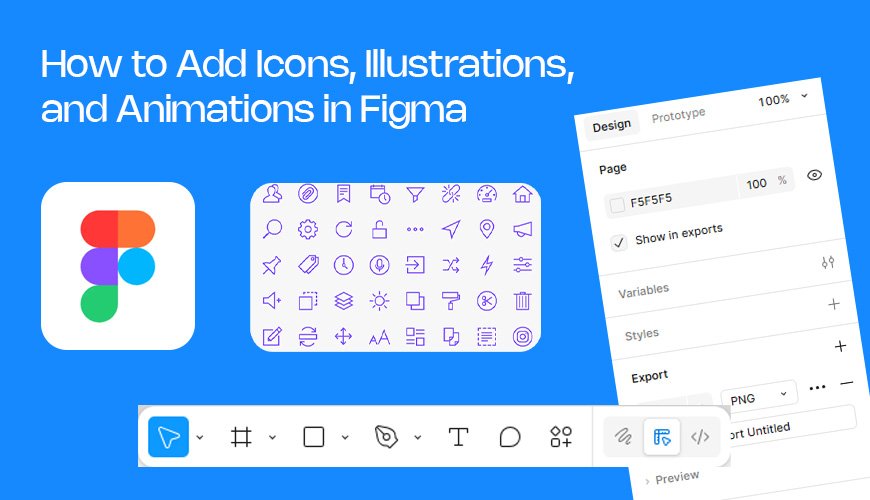
Have you ever seen a website or app that just looks right? The buttons are clear, the pictures tell a story, and everything moves smoothly. A lot of this is thanks to icons, illustrations, and animations. These aren't just for show. They help people use your design easily and make it more fun. In this guide, we'll show you how to add these important parts to your designs using a tool called Adobe XD.
Icons are small pictures that stand for an action or idea. Think of a tiny house for "home" or a shopping cart for "buy." They help people quickly understand what to do.
Adobe XD has a neat trick called plugins. These are like little apps you can add to XD.
Go to the bottom-left of Adobe XD and click the Plugins icon.
Click the "+" button to look for new plugins.
Search for "icons." You'll find popular ones like Icons 4 Design or Noun Project.
Install the plugin you want.
Now, you can open the plugin, search for an icon, and click to add it right onto your design.
If you find an icon online or get one from a friend, you can use it.
The best type of icon file is an SVG. This is a vector file. It means you can make it any size without it getting blurry.
Find an icon file on your computer.
Just drag the file and drop it into your Adobe XD project. It's that easy!
If you drop in an SVG, you can even change its color or shape in XD.
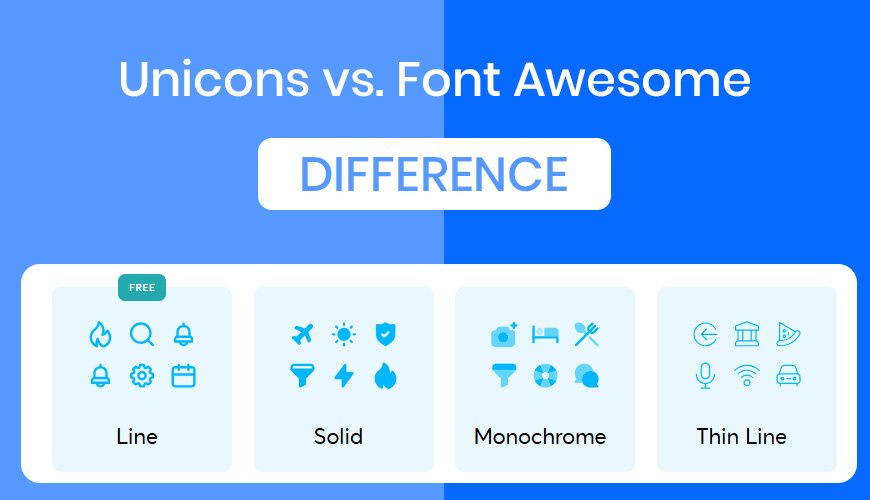
Be consistent. Use the same style of icons throughout your design. Don't mix thick, filled-in icons with thin, line-based ones.
Use SVG files. They are small and easy to change.
Illustrations are like a bigger, more detailed version of an icon. They can show a scene or a person. They help make your design feel friendly and unique.
There are many websites with free illustrations.
Check out sites like unDraw, Humaaans, or Freepik.
Find an illustration you like and download it as an SVG or PNG.
Just like with icons, drag and drop the file into your Adobe XD project.
The unDraw plugin is a good example. You can pick illustrations and even change their main color to match your brand right inside the plugin.
Match your brand. Pick illustrations that fit the mood of your design.
Keep it clean. Don't use too many big pictures. Let your illustrations have some space around them so they stand out.
Animations are a bit of motion. They make a design feel alive. A button that changes color when you hover over it is a simple animation.
This is Adobe XD's own tool. It's a bit like magic.
Make a copy of the screen you want to animate.
On the new screen, move or change the thing you want to animate. For example, make a button bigger.
Go back to the first screen. Select the button.
Switch to Prototype mode (the little play button icon on the top left).
Drag a blue arrow from the button to the new screen.
In the options panel, choose "Auto-Animate" for the transition. Now, when you click the button in your preview, it will smoothly move to its new state.
Lottie animations are special. They are small and don't slow down your website or app.
Install the LottieFiles plugin.
Search for an animation you like.
Add it to your design. Lottie animations are great for showing loading screens or for fun, small motions.
Be subtle. Animations should help, not distract. They should feel smooth and natural.
Guide the user. Use a small animation to show people that something is clickable. For example, a tiny bounce on a button.
The best designs use all three of these things in harmony.
Make sure your icons, illustrations, and animations all have a similar feel. Use the same colors and shapes where you can.
Try animating an icon. For example, make a small rocket icon "fly" when a user clicks a button.
Always test your design. Use the preview mode in Adobe XD to see how it looks and feels. Make sure everything works the way you want it to.
Adding icons, illustrations, and animations is a great way to make your designs much better. They help people understand your design, make it more enjoyable to use, and give it a professional touch. Start by adding a few icons, then try a simple animation. The more you practice, the easier it will get. Have fun designing!